What's new in
Aurora 1.7
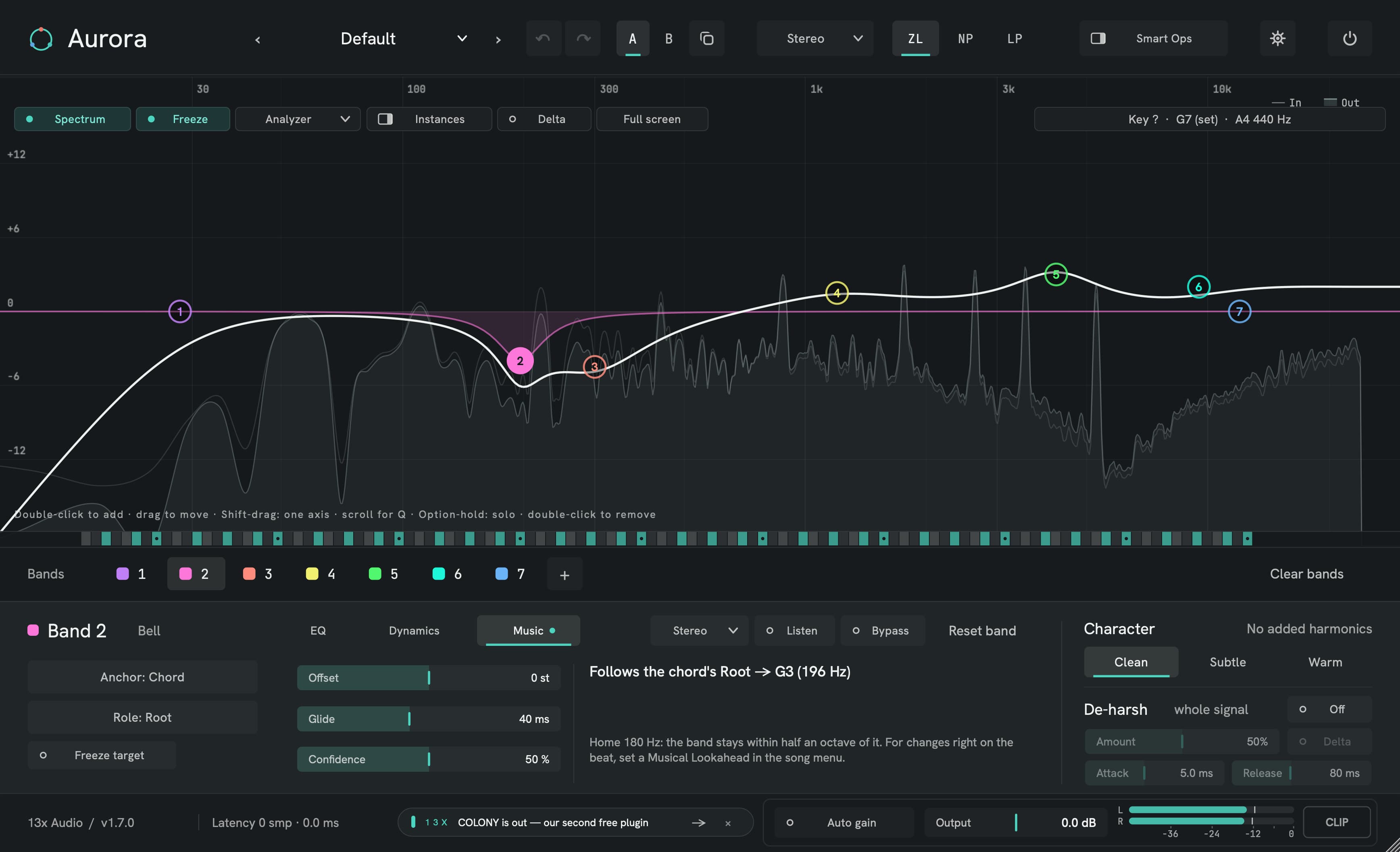
Aurora now listens to your track (its key, chords, tuning, bass line, kick and voice), and your EQ can follow it. Everything new is off until you switch it on, and with it off Aurora sounds like 1.6.1, apart from a quieter low end and the corrected steep cuts. It's still free.
A band that stays on the root, chord after chord.
Any band can now follow something instead of sitting at a fixed frequency: a note, a tone of the chord that is playing, a degree of the song's key, or a sound itself (the kick, the bass line, the snare, a vocal formant, sibilance, the lead) or a harmonic of it. A cut on the root stays on the root through the whole progression. When the analysis isn't sure, the band holds where it is.
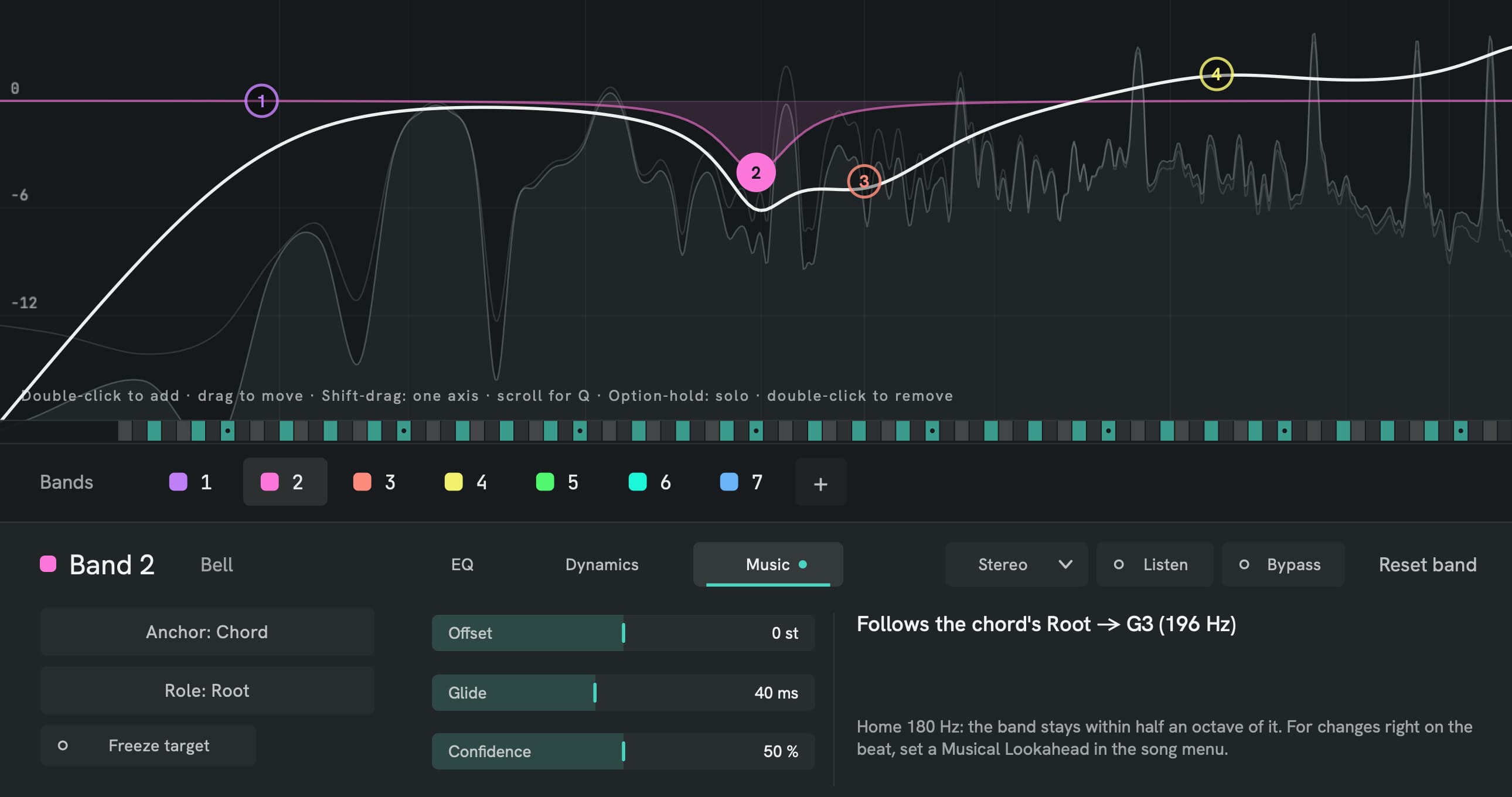
Make a cut follow the chord's root
- Select a band and open its new Music page.
- Set Anchor to Chord and the role to Root.
- Adjust Offset, Glide (how long the band takes to move) and Confidence (how sure the analysis must be). Freeze target keeps it where it is.
- Or skip the setup: play the track, right-click a sound on the graph and choose Follow this sound. One undo takes it back.
Tip: Aurora needs a moment to recognise a chord. A Musical Lookahead of 25–400 ms (click the song chip over the graph) lands every change exactly on the beat. It is reported to your host as latency.
| Anchor | The band follows |
|---|---|
| Note | the nearest note of the tuning |
| Chord | the root, 3rd, 5th, 7th, 9th, 11th, 13th or bass note of the chord playing now |
| Scale | a degree of the song's key |
| Source | the kick's tail, the bass line, the snare's body, a vocal formant (F1–F3), sibilance, the lead, or the strongest resonance near the band |
| Harmonic | 2× to 16× the pitch of the kick, bass, snare or lead |
EQ by note name, and a cleaner that knows the key.
Chroma EQ has twelve sliders, one per note name: boost or cut every C, or every F♯, in every octave at once, with no latency. In Key Relative mode the sliders are the steps of the song's key, so the shape follows a key change. The Out-of-Key Cleaner puts up to six steep, moving cuts on steady resonances outside the key (or the chord). Notes of the key, the chord and the lead are never touched.
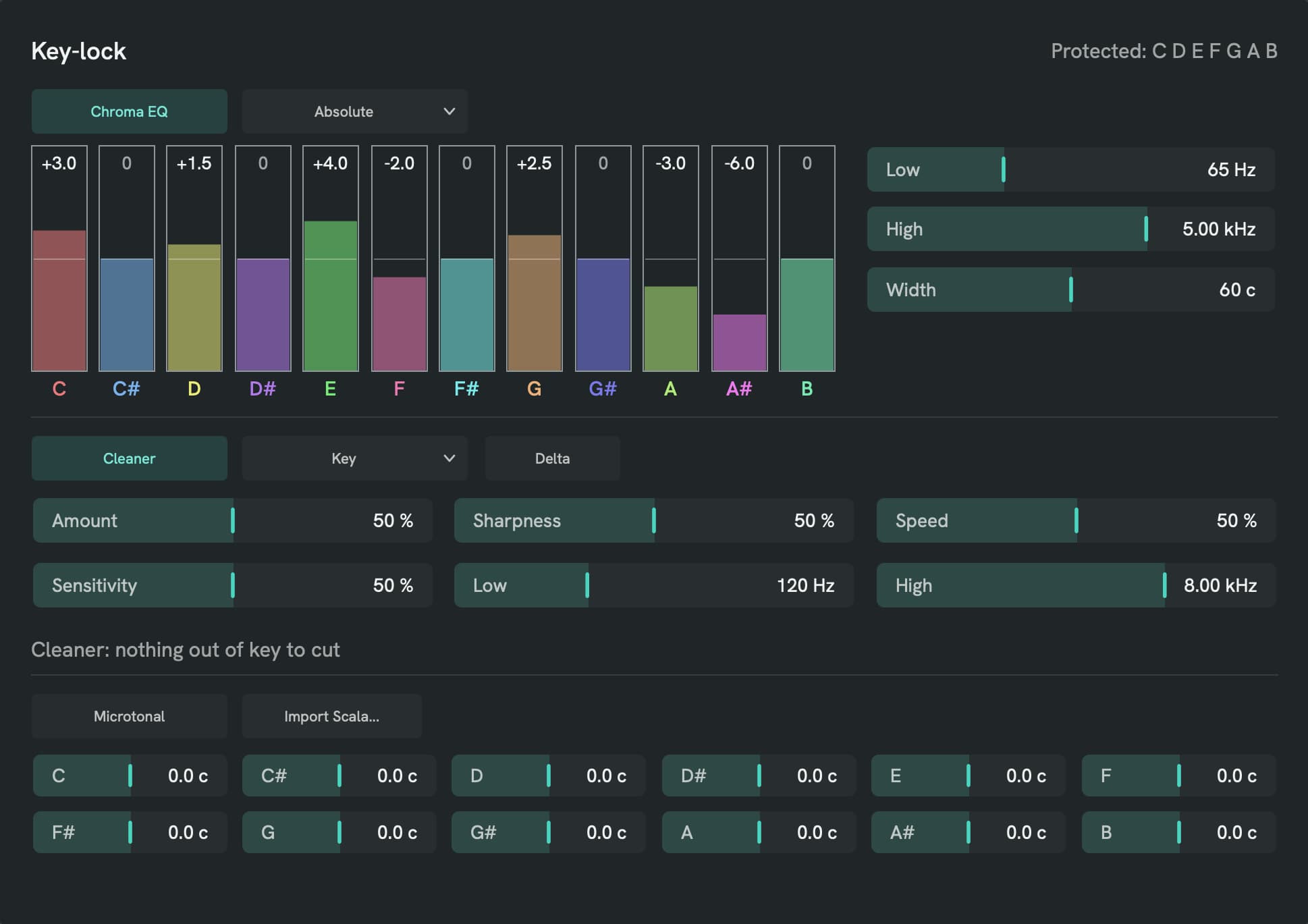
Set up Key-lock
- Click the song chip over the graph and open Key-lock.
- Switch Chroma EQ on and move a note's slider. +6 dB on a slider is +6 dB on its notes, because overlapping bells are compensated.
- Choose Key Relative if the shape should follow the song's key.
- Switch the Cleaner on and click Delta to hear only what it removes.
Tip: Working in another tuning? Microtonal detunes each note name by up to ±50 cents, and Import Scala loads a 12-note .scl scale on any root. Anchors, Chroma EQ and the Cleaner all follow it.
Every 808 note at the same loudness. A kick that gets through.
The Per-Note Leveler brings every 808 or bass note to the same perceived loudness. It learns each note, so from its second time on the correction is there from the first moment: in our test riff, notes 20 dB apart come out within 0.6 dB. Kick-Bass Lock ducks the bass at the kick's own frequency on every hit, by a fixed depth, for a moment. Both stay clear without pumping the whole bass.
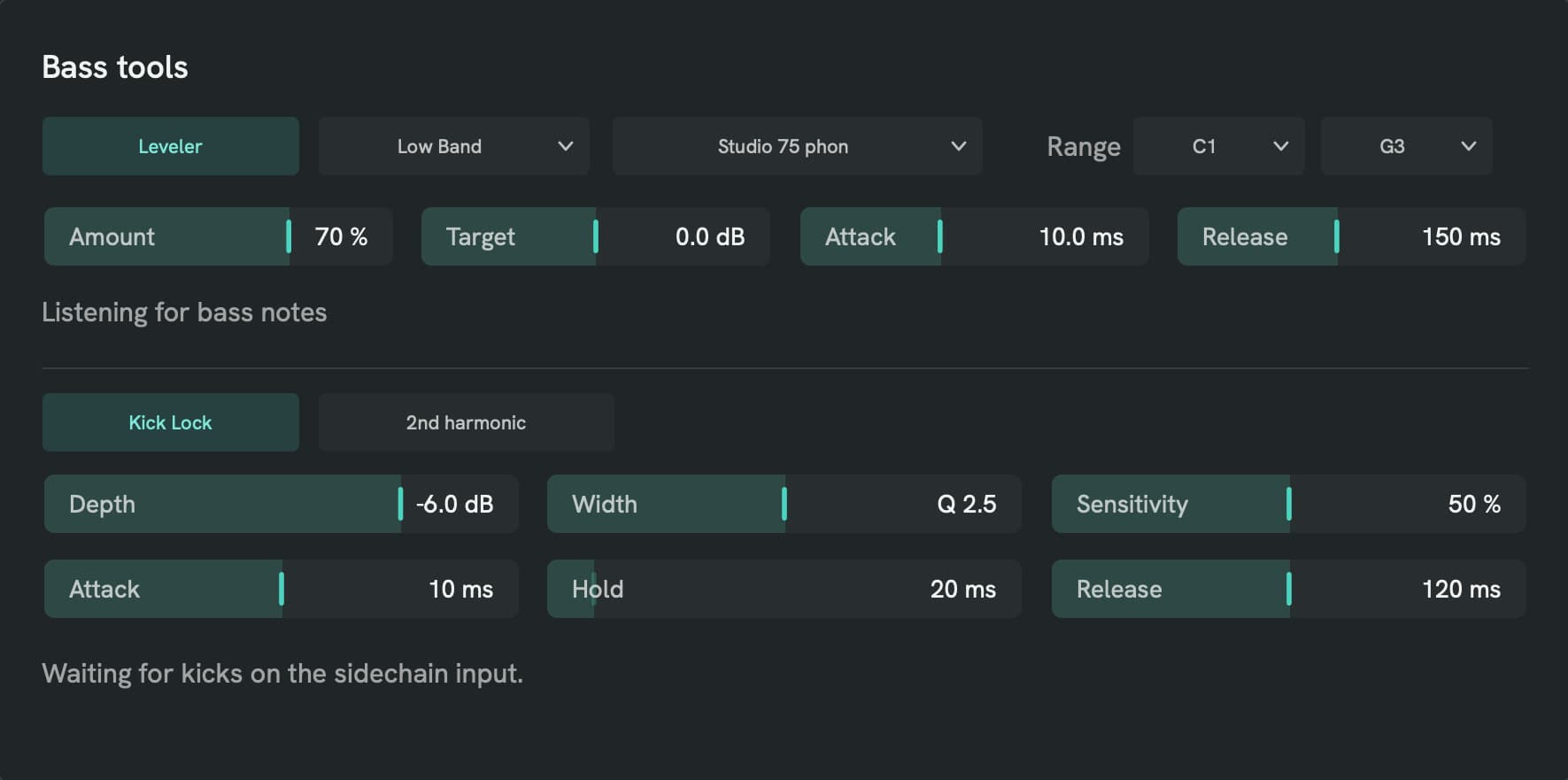
Lock the bass to the kick
- Put Aurora on the bass and route the kick to its sidechain input.
- Click the song chip over the graph and open Bass tools.
- Switch Kick Lock on and set Depth. On every kick, the bass ducks at that kick's frequency.
- For uneven 808 notes, switch the Leveler on too and set Range to the notes it should level.
Tip: Six musical presets, among them 808 Leveler and Kick-Bass Lock, are a quick start. They're in the new Musical folder of the preset menu.
Steep cuts now sit where you set them.
A Low Cut or High Cut at 18 to 96 dB/oct used to cut too much around its cutoff: at 48 dB/oct the frequency you set was 12 dB down instead of 3 dB, and the sound an octave above a low cut still lost 1–2 dB. Every slope now has the textbook Butterworth shape: 3 dB down at the cutoff, and flat where it lets sound through. 6 and 12 dB/oct and Brickwall are unchanged.
Your old sessions sound as they were mixed
- Open a project saved before 1.7: Legacy cut slopes is ticked in the gear menu, and that instance keeps the old design.
- Untick it to move that instance's steep cuts to the corrected design.
- New instances use the corrected design from the start.
Tip: Legacy cut slopes belongs to the instance and is saved with the project. Loading a preset never changes it.
| Low Cut at 48 dB/oct | Before → 1.7 |
|---|---|
| At the cutoff | 12 dB down → 3 dB down |
| An octave above | 1–2 dB lost → flat |
Tilt: one straight slope across the whole spectrum.
A new band shape. 0 dB at the band's frequency, everything above it brighter and everything below darker, or the other way round, in one straight line. Gain sets the slope, up to 6 dB/oct either way, and Q has no effect.
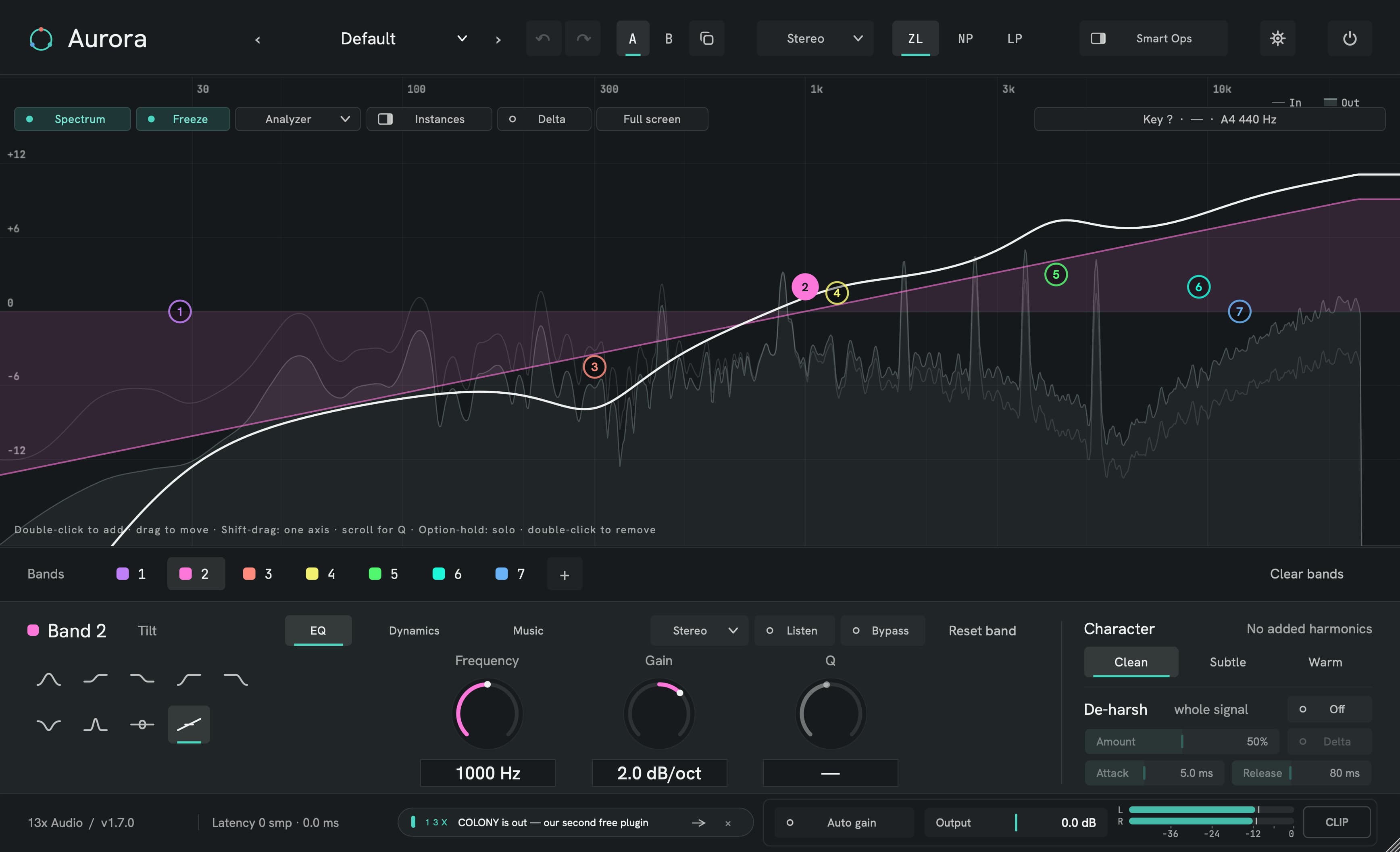
Tilt a mix brighter or darker
- Select a band and pick Tilt, the ninth shape in the band editor, or choose it from the node's right-click menu.
- Set the pivot with Frequency.
- Drag the node up or down, or turn Gain, to set the slope in dB/oct.
Tip: Switching back to another shape brings back the band's earlier type.
Open Aurora in the view you use most.
A new gear-menu setting, Open Aurora in, picks what a new Aurora window shows: the graph, the Instances list beside it, or Compare. It is your setting, like the theme, and not part of a project or preset.
Choose your start view
- Click the gear at the top right of Aurora.
- Under Open Aurora in, pick the graph, the Instances list or Compare.
- The next Aurora window you open starts there.
Also in 1.7.
A quieter low end
Aurora's filters now calculate with far more internal precision: their own noise on low-frequency bands is below -140 dB (it reached about -68 dB with a full-scale test tone). De-harsh now ignores pure calculation noise, so it stays calm with sweeps and test signals.
CLAP on Windows fits its window
With display scaling (REAPER at 175 %), the CLAP version drew larger than its window and only its top-left part was visible. It now fits at every scaling, as the VST3 always did.
Click to Follow
Right-click a sound on the graph: Follow this sound (for example Bass, harmonic 2 · 110 Hz) creates a band that follows it. Follow as lets you pick the source yourself.
The song chip
Over the graph: the key, the chord and the tuning Aurora hears. Click it to set where harmony comes from (this track, the sidechain, or a chord you set by hand, automatable), the key and scale, and the tuning reference (A4 415–466 Hz, or detected).
Musical Lookahead
25–400 ms, reported to your host as latency, so that changes land exactly on the beat.
Six musical presets
A new Musical folder: 808 Leveler, Kick-Bass Lock, Vocal Presence (Formant), In-Tune Cleaner, Warm 3rds and Root Mud Cut. Loading a preset never changes your song's key, tuning or lookahead.
A keyboard strip on the graph
It shows the key, the chord (root marked), the bass note and the Cleaner's cuts. Moving bands leave a short trail, and the curve includes what Chroma EQ and the modules do.
Your sessions sound as they were mixed.
1.6 projects open with Legacy cut slopes and, with the new features off, sound as before: the only difference is the filter noise that's gone, more than 70 dB below the music. With every band flat, Aurora still passes your audio through bit for bit. In a new instance Low and High Cuts at 18 to 96 dB/oct also sound different, because they are corrected. A 1.7 project opens in 1.6.1 with every 1.6 setting intact.
- of one core for a typical musical session at 48 kHz
- 1.3 %
- with everything on at once
- 4–6 %
- of music before bands start to follow
- 1–2 s
In 1.6.1 a Tilt band falls back to the shape it had before, and every cut plays with the old design. On Macs with Apple silicon, 1.7 now rounds exactly as on every other platform, so there it differs from 1.6.1 in the last bit of some samples, far below anything audible.
Everything in 1.7.0.
Bands that follow the music
- Anchors, on each band's new Music page: Note (the nearest note of the tuning), Chord (the root, 3rd, 5th, 7th, 9th, 11th, 13th or bass note of the chord playing now; a cut on the root stays on the root through the whole progression), Scale (a degree of the song's key), Source (the kick's tail, the bass line, the snare's body, a vocal formant F1, F2 or F3, sibilance, the lead melody, or the strongest resonance near the band) and Harmonic (2× to 16× the pitch of the kick, bass, snare or lead).
- Each band has an Offset, a Glide time, a Confidence threshold and Freeze. When the analysis is not sure, the band holds where it is; a band that has heard nothing yet waits at 0 dB.
- Click to Follow: right-click a sound on the graph. Follow this sound (for example Bass, harmonic 2 · 110 Hz) creates a band that follows it, and Follow as lets you pick the source yourself. One undo takes it back.
- The song chip over the graph shows the key, the chord and the tuning Aurora hears. Click it for the song settings: where harmony comes from (this track, the sidechain, or a chord you set by hand, automatable), the key and scale (detected or set), the tuning reference (A4 415–466 Hz, or detected) and the Musical Lookahead.
- Musical Lookahead (25–400 ms, reported to your host as latency): changes land exactly on the beat.
Key-lock
- Chroma EQ: twelve sliders, one per note name. Boost or cut every C, every F♯ … in all octaves at once, with no latency. In Key Relative mode the sliders are the steps of the song's key, so the shape follows a key change. Overlapping bells are compensated: +6 dB on a slider is +6 dB on its notes.
- Out-of-Key Cleaner: up to six steep, moving cuts on steady resonances that sit on notes outside the key (or outside the chord). Notes of the key, the chord and the lead are never touched. Delta lets you hear only what it removes.
- Microtonal tuning and Scala import: detune each note name by up to ±50 cents, or load a 12-note .scl scale on any root. Anchors, Chroma EQ and the Cleaner all follow it.
Bass tools
- Per-Note Leveler: every 808 or bass note at the same perceived loudness. It learns each note: from its second time on, the correction is there from the first moment. In our test riff, notes 20 dB apart come out within 0.6 dB.
- Kick-Bass Lock: route the kick to the sidechain, and on every hit the bass ducks at that kick's own frequency, by a fixed depth, for a moment. Both stay clear without pumping the whole bass.
Cuts and a new shape
- Steep cuts now sit where you set them. A Low Cut or High Cut at 18 to 96 dB/oct used to cut too much around its cutoff: at 48 dB/oct the frequency you set was 12 dB down instead of 3 dB, and the sound an octave above a low cut still lost 1–2 dB. Every slope now has the textbook (Butterworth) shape: 3 dB down at the cutoff, flat where it lets sound through, and its knee control works the same on every slope. 6 and 12 dB/oct and Brickwall are unchanged.
- Your old sessions sound as they were mixed: a project saved before this correction opens with Legacy cut slopes ticked in the gear menu and keeps the old design. Untick it to move that instance's steep cuts to the new one. New instances use the corrected design. The setting belongs to the instance and is saved with the project; loading a preset never changes it.
- Tilt, a new band shape: a straight slope across the whole spectrum, 0 dB at the band's frequency. Gain sets the slope, up to 6 dB/oct either way, and Q has no effect. Pick it as the ninth shape in the band editor or from the node's right-click menu. Switching back to another shape brings back the band's earlier type.
- Open Aurora in: a new gear-menu setting picks what a new Aurora window shows, the graph, the Instances list beside it, or Compare. It is your setting, like the theme, and not part of a project or preset.
- Smaller sizes, and a Size menu: Aurora's window now goes down to 50 % (it stopped at 72 %). Gear menu > Size has 50, 75, 100, 125 and 140 %; dragging the corner still works in between. From 72 % up Aurora looks exactly as before. The size is yours, like the theme, and not part of a project or preset.
Fixed
- A quieter low end: the internal noise floor of low-frequency bands is now below -140 dB (a bass boost, a low shelf or a low cut added noise of its own, up to about -68 dB with a full-scale test tone). Steep cuts, Brickwall, dynamic bands and Character's DC stage work at the same higher precision.
- De-harsh behaves calmly with test signals: it ignores anything more than 120 dB below the loudest part of the signal. On music it works as before.
- CLAP on Windows with display scaling: in REAPER at 175 % scaling, the CLAP version drew larger than its window and only its top-left part was visible. It now fits its window at every scaling, as the VST3 always did.
Also new
- Six musical presets in a new Musical folder: 808 Leveler, Kick-Bass Lock, Vocal Presence (Formant), In-Tune Cleaner, Warm 3rds and Root Mud Cut. Loading a preset never changes your song's key, tuning or lookahead.
- On the graph: a keyboard strip shows the key, the chord (root marked), the bass note and the Cleaner's cuts; moving bands leave a short trail; the curve includes what Chroma EQ and the modules do.
Good to know
- Your sound doesn't change audibly: 1.6 projects open with Legacy cut slopes and, with the new features off, the only difference from 1.6.1 is the filter noise that's gone, more than 70 dB below the music. With every band flat, Aurora still passes your audio through bit for bit. In a new instance Low and High Cuts at 18 to 96 dB/oct also sound different, because they are corrected.
- A 1.7 project opens in 1.6.1 with every 1.6 setting intact; a Tilt band there falls back to the shape it had before, and 1.6.1 plays every cut with the old design.
- On Macs with Apple silicon, 1.7 now rounds exactly as on every other platform, so there it differs from 1.6.1 in the last bit of some samples, far below anything audible.
- CPU: a typical musical session adds about 1.3 % of one core at 48 kHz; everything on at once 4–6 %.
- The analysis needs a second or two of music before bands start to follow.
Get Aurora 1.7.
Free for Windows, macOS and Linux. VST3, AU, CLAP and LV2. No account, no licence key.