What's new in
Aurora 1.6
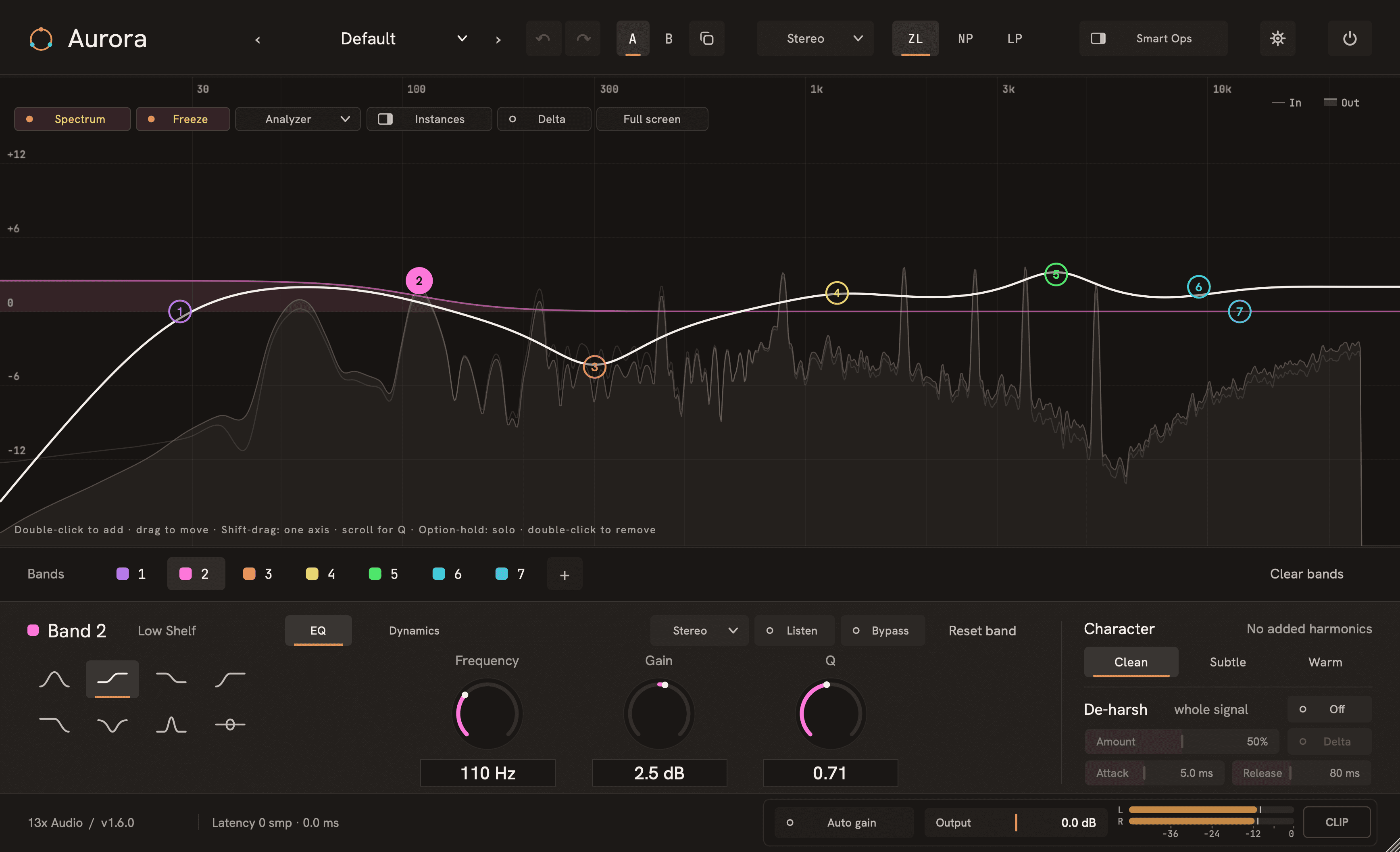
Four themes, a full-screen spectrum, dynamic EQ that acts the moment you switch it on, and an ear for exactly what De-harsh removes. Almost all of it started as a message from someone using Aurora. It's still free, and your existing mixes sound exactly the same.
Four themes. One of them is yours.
Graphite is the Aurora you know. Midnight is a deep blue for dark rooms, Ember is warm amber, and Studio Light is for bright studios and daylight. Each has one accent colour (teal, blue, amber or a deep teal on white), and the band colours stay where your eyes expect them.
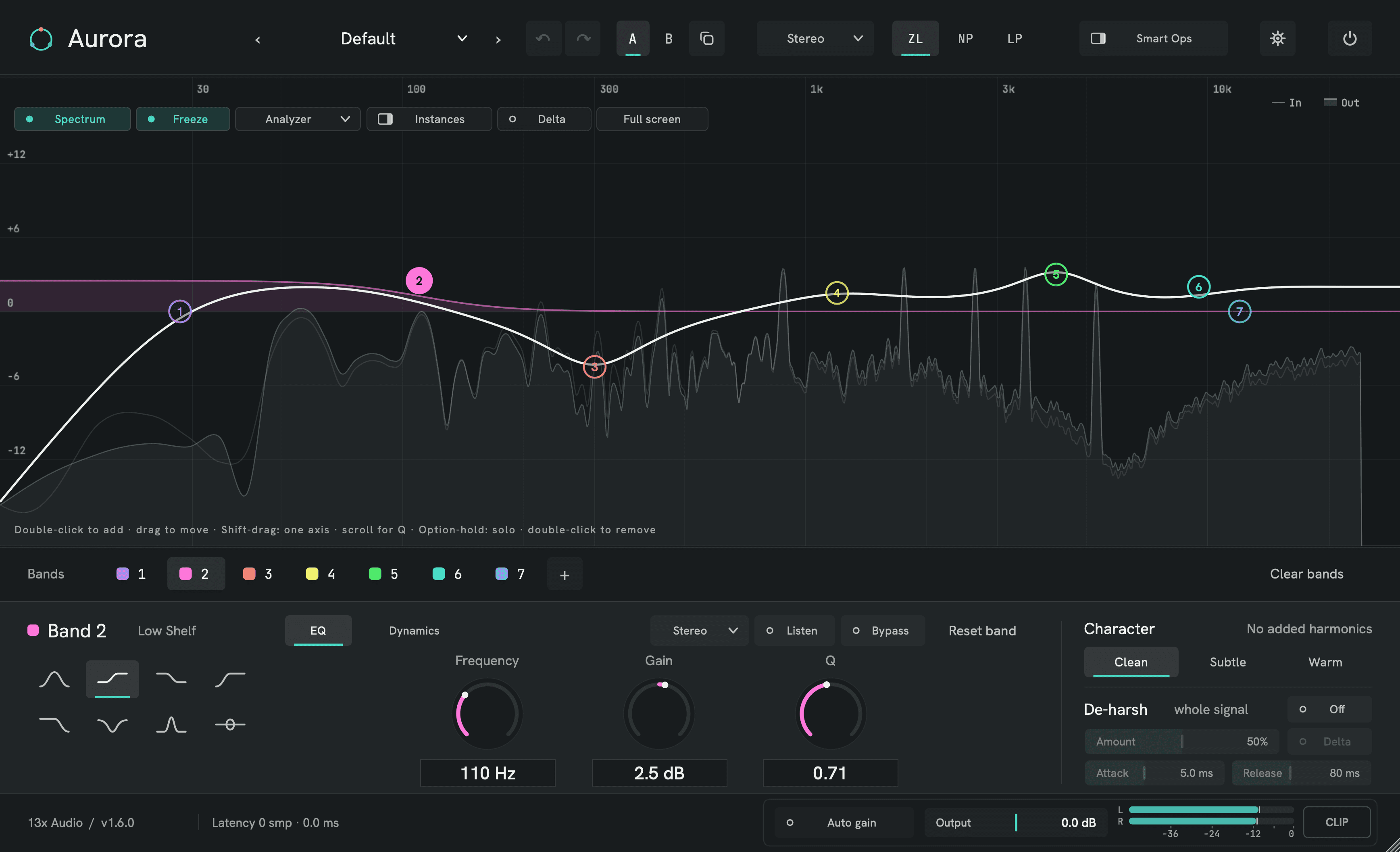
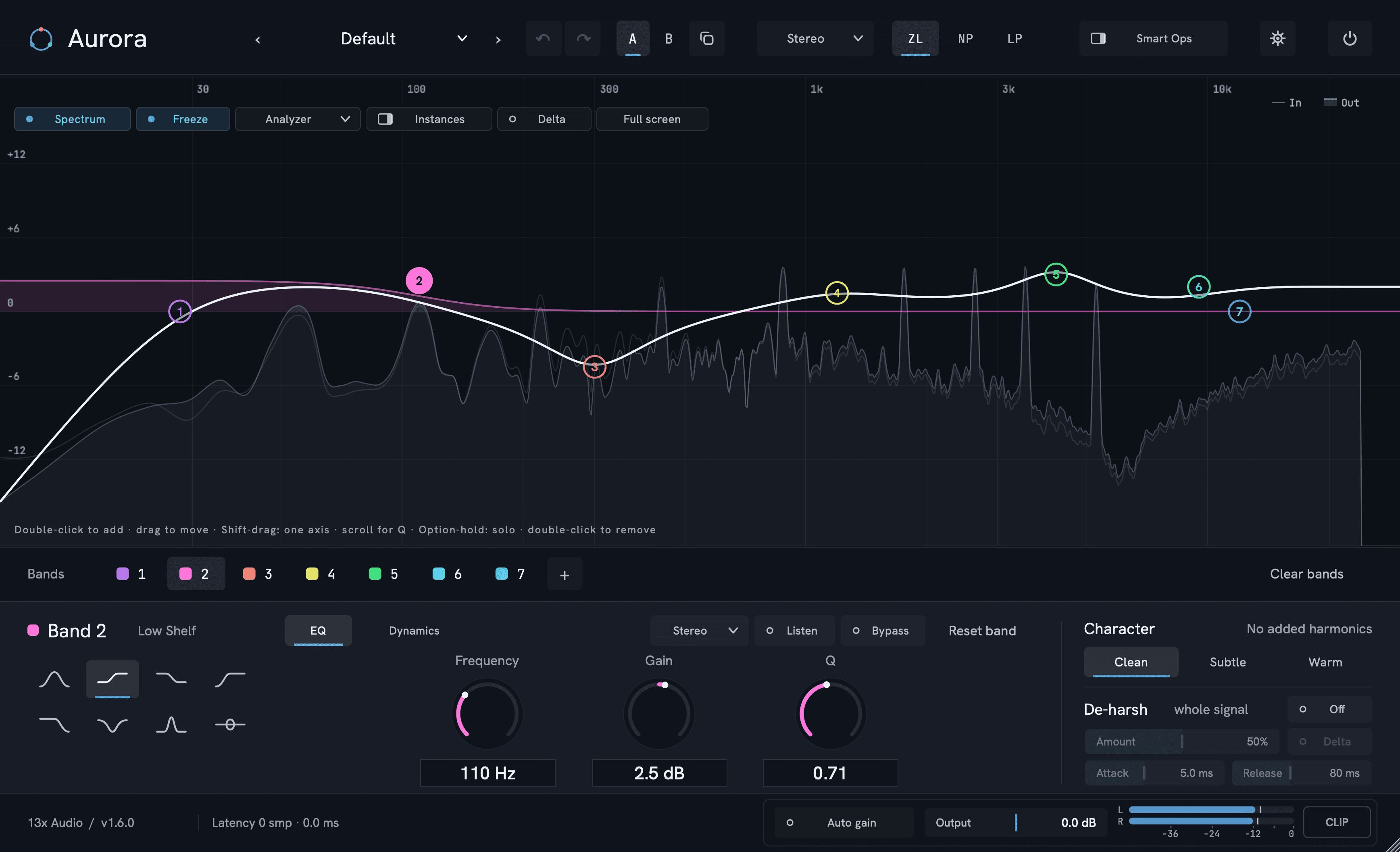
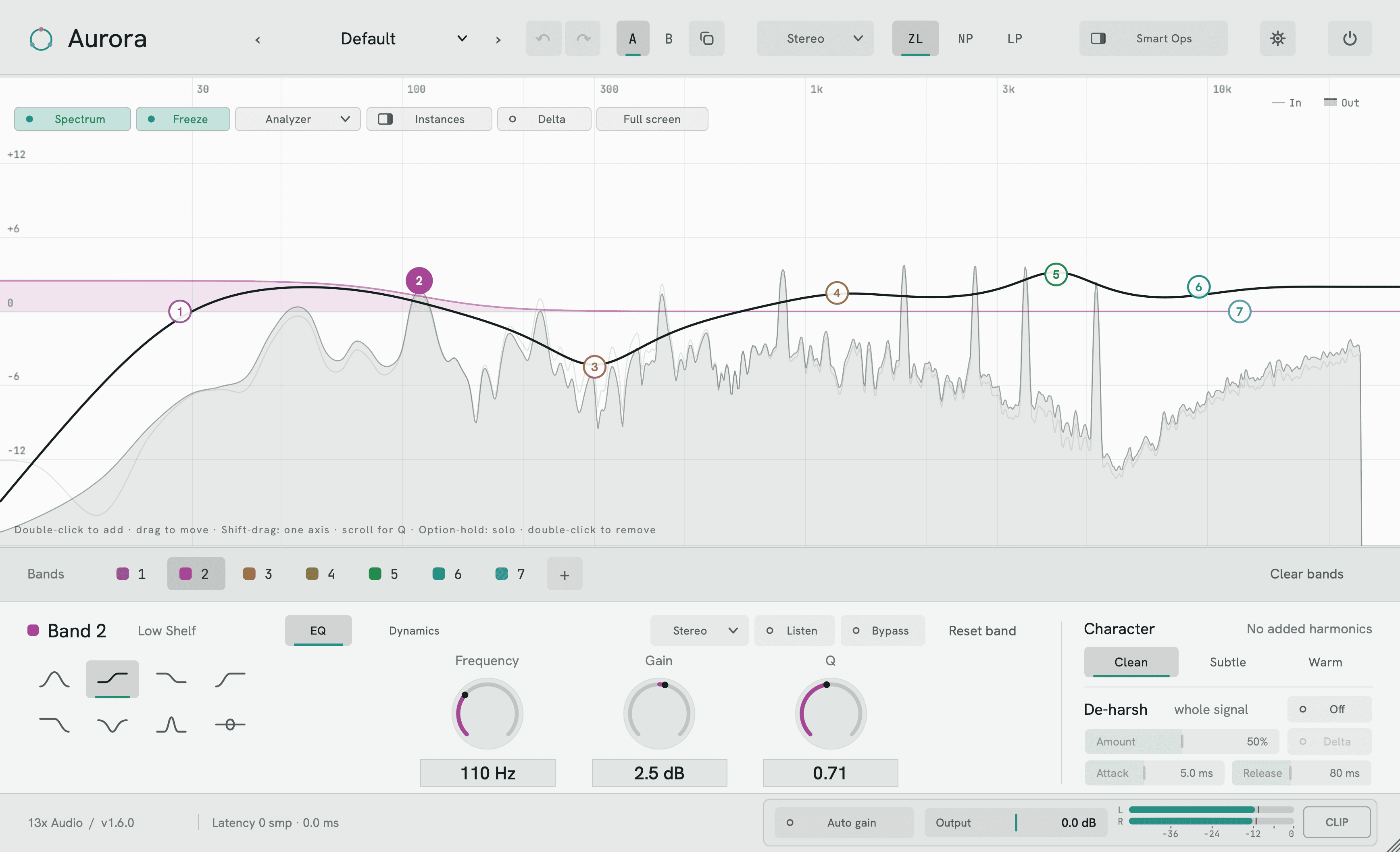
Switch the theme
- Click the gear at the top right of Aurora.
- Open Theme and pick Graphite, Midnight, Ember or Studio Light.
- Every open Aurora window changes at once. No restart needed.
Tip: The theme is your own setting, not part of the project. A session you send to someone opens in their theme.
The whole screen for the curve.
One click and the spectrum and EQ curve fill your screen: more room to see a resonance and to place a node exactly. Everything stays editable. You can drag, scroll, right-click and double-click as usual, and the nodes keep their size, so the curve doesn't turn into a cartoon on a big monitor.
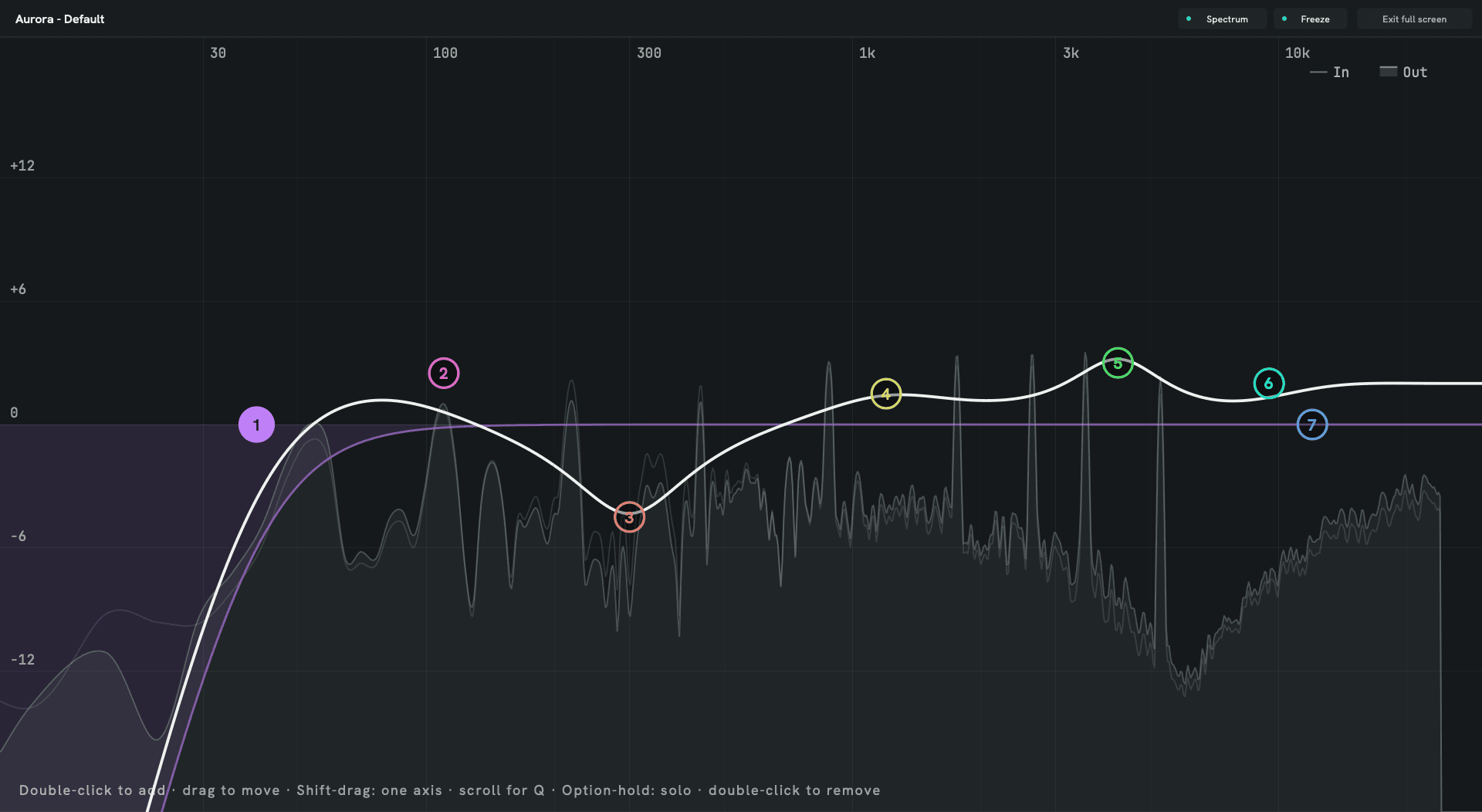
Go full screen
- Click Full screen in the row above the graph, next to Delta.
- Edit as usual: drag nodes, scroll for Q, right-click for the node menu.
- Press Esc or click Exit full screen to come back.
Tip: Spectrum and Freeze sit at the top right in full screen too, so you can freeze a moment and work on it at full size.
Dynamic EQ that acts from the first click.
Until now, a band switched to Dynamic started at a Threshold of −24 dB. At normal mix levels most bands never got there, so nothing happened, and that was confusing. Now Aurora listens first: switch dynamics on while your track plays and the Threshold lands just under what that band actually hears, with a Range of −6 dB. You hear it work right away. The Dynamics page also shows what the band hears against the Threshold, so you know which way to turn.
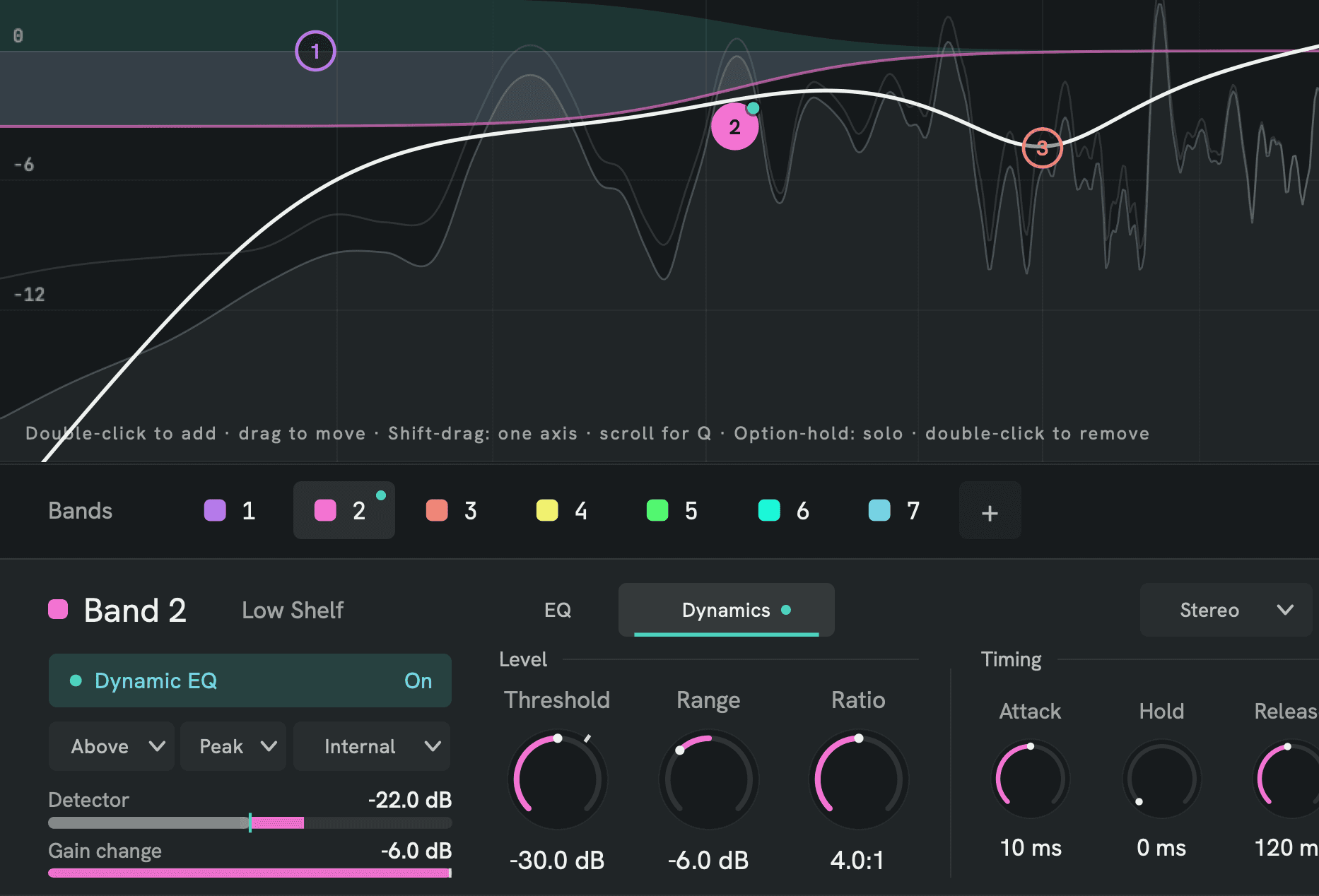
Tame a boomy bass note
- Start playback, then select the band on the problem area (or double-click there to create one).
- Open the Dynamics tab and switch Dynamic EQ on. Or right-click the node and tick Dynamic.
- Aurora sets the Threshold 6 dB under the band's recent peak and the Range to −6 dB. The Gain change row starts moving.
- Fine-tune: Detector shows what the band hears, and the small mark on the Threshold knob shows the same level. Lower the Threshold for more action, raise it for less.
- Not your thing? One Undo takes back the starting values and the switch together.
Tip: Aurora only fills in the starting values when the band's dynamics are still at their defaults, and only while there is signal. Settings you've already changed are never touched. If the band hears nothing or never reaches the Threshold, a short note on the Dynamics page tells you.
Hear only what De‑harsh takes away.
De-harsh softens harsh, piercing frequencies across the whole signal. Its new Delta button lets you listen to only the part it removes, which makes it easy to tell whether it is catching harshness or eating into the vocal, the snare or the melody.
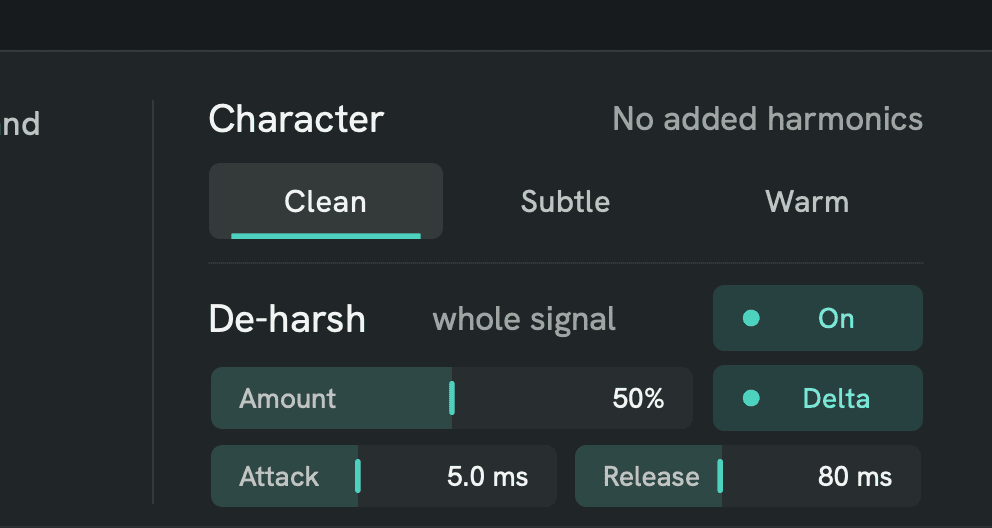
Set De-harsh by ear
- Switch De-harsh on in the Character panel.
- Click Delta beside Amount. Now you hear only what De-harsh removes.
- Raise Amount until you hear the harshness clearly in the Delta.
- When the melody, the words or the attack of the drums start to come through, back off a little.
- Click Delta again to hear the full mix.
Tip: De-harsh Delta is a listening aid and is never saved. It fades in and out over 10 ms, and it switches off by itself when you stop playback, close Aurora, switch De-harsh off or load a preset. If the main Delta is on too, De-harsh Delta wins while it's on.
Double-click, and get the band you meant.
A double-click on the graph now creates the band type that fits where you click: a cut at the far edges, a shelf in the lows and highs, a bell in between. A quiet label next to the pointer tells you what you'll get before you click.
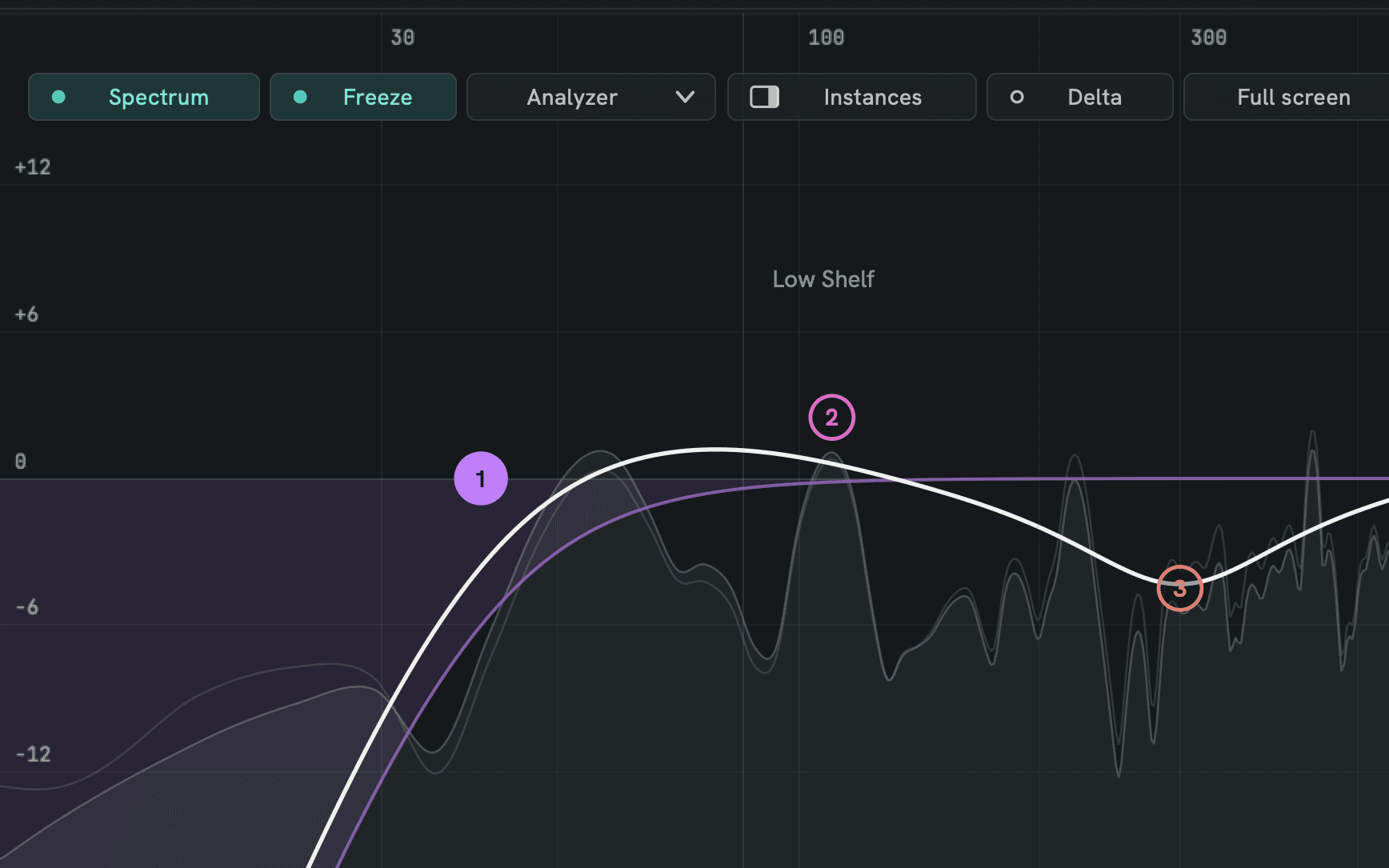
Add bands faster
- Move the pointer over the graph and read the label beside it.
- Double-click to create that band, then drag it into place.
- Hold Shift while double-clicking to get a Bell anywhere.
Tip: Prefer a Bell every time, as before? Untick Smart band type in the gear menu.
| Where you double-click | What you get |
|---|---|
| Below 30 Hz | Low Cut |
| 30–150 Hz | Low Shelf |
| 150 Hz – 7 kHz | Bell |
| 7–15 kHz | High Shelf |
| Above 15 kHz | High Cut |
A real Slope control on cut bands.
On a Low Cut or High Cut, the band editor used to show a Q knob that barely changed anything. Now that knob is Slope: from a gentle 6 dB/oct to a steep 96 dB/oct, or Brickwall. It's the same setting as the mouse wheel over the node and the right-click menu, so all three always agree, and it works with undo and automation.
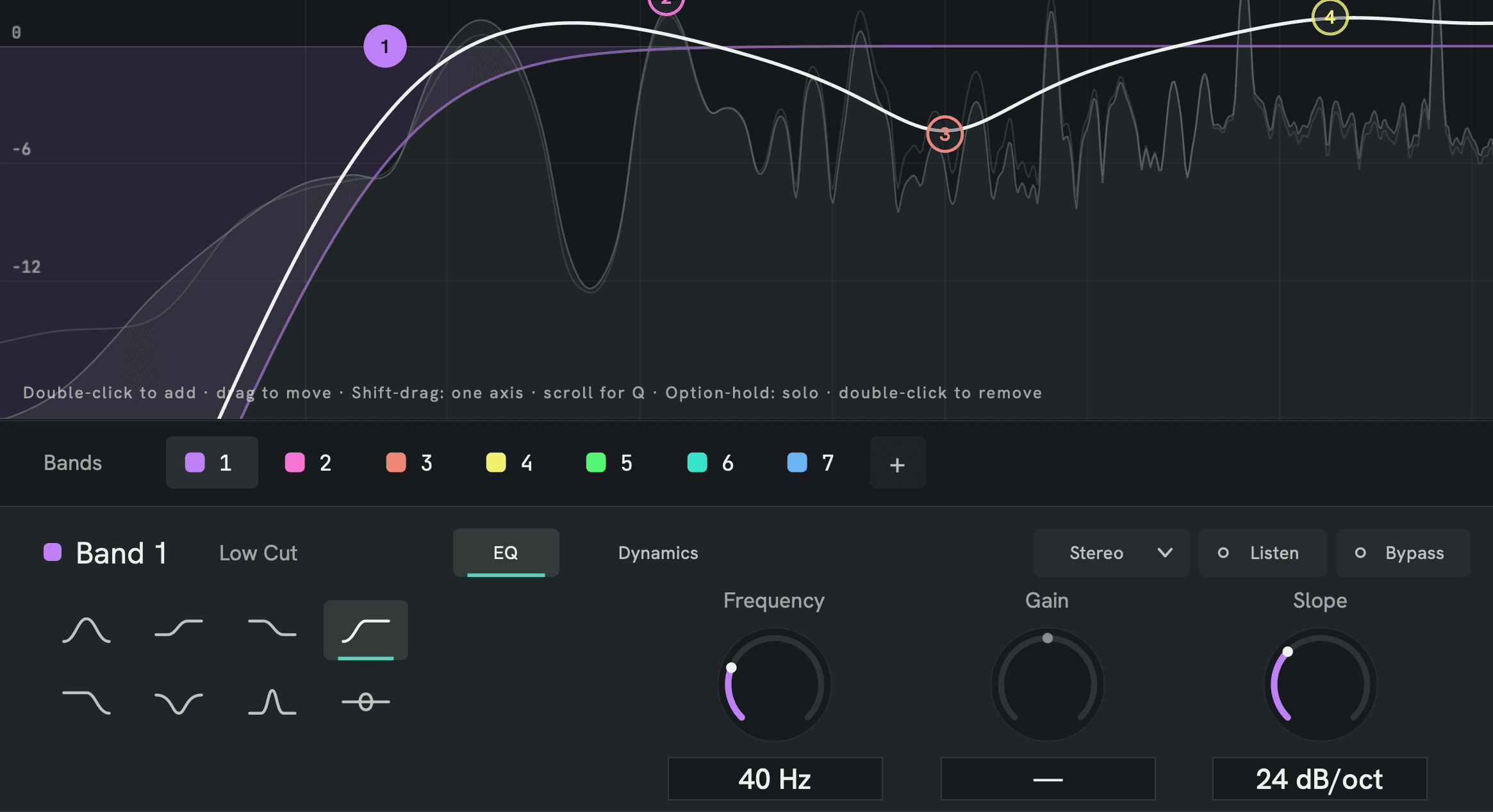
Set the slope
- Select a Low Cut or High Cut band.
- Turn Slope in the band editor, scroll over the node, or right-click the node and choose a slope.
- Or click the value and type it: 24, or Brickwall.
Tip: On a cut band, Gain is dimmed and shows a dash, because cuts, Notch, Band Pass and All Pass don't use gain. The knee of the cut is still on Alt/Option + wheel over the node.
| Slope | Sounds like |
|---|---|
| 6–12 dB/oct | gentle, natural cleanup |
| 18–36 dB/oct | a firm cut, the everyday choice |
| 48–96 dB/oct | very steep, for rumble or a hard edge |
| Brickwall | everything past the corner is gone |
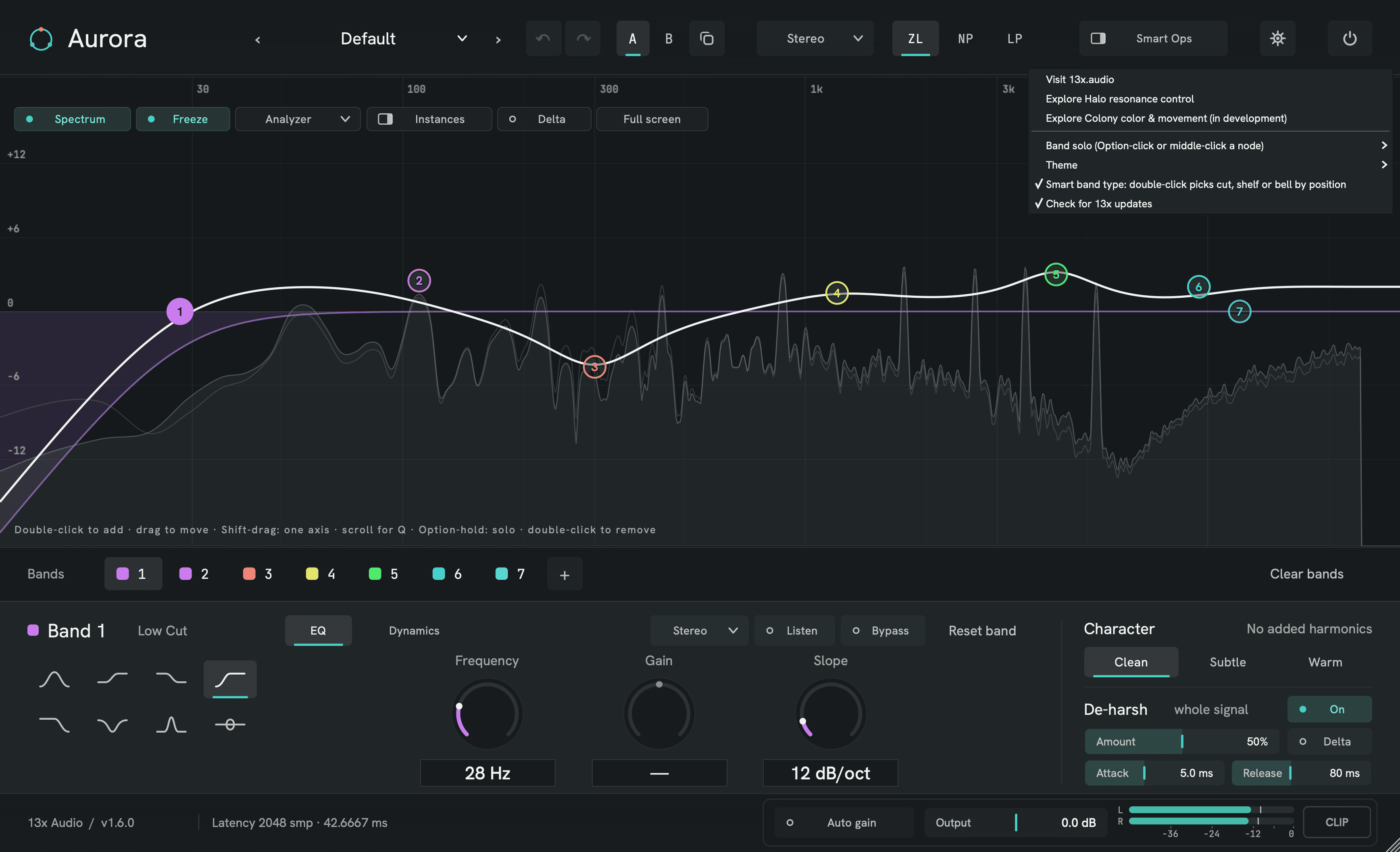
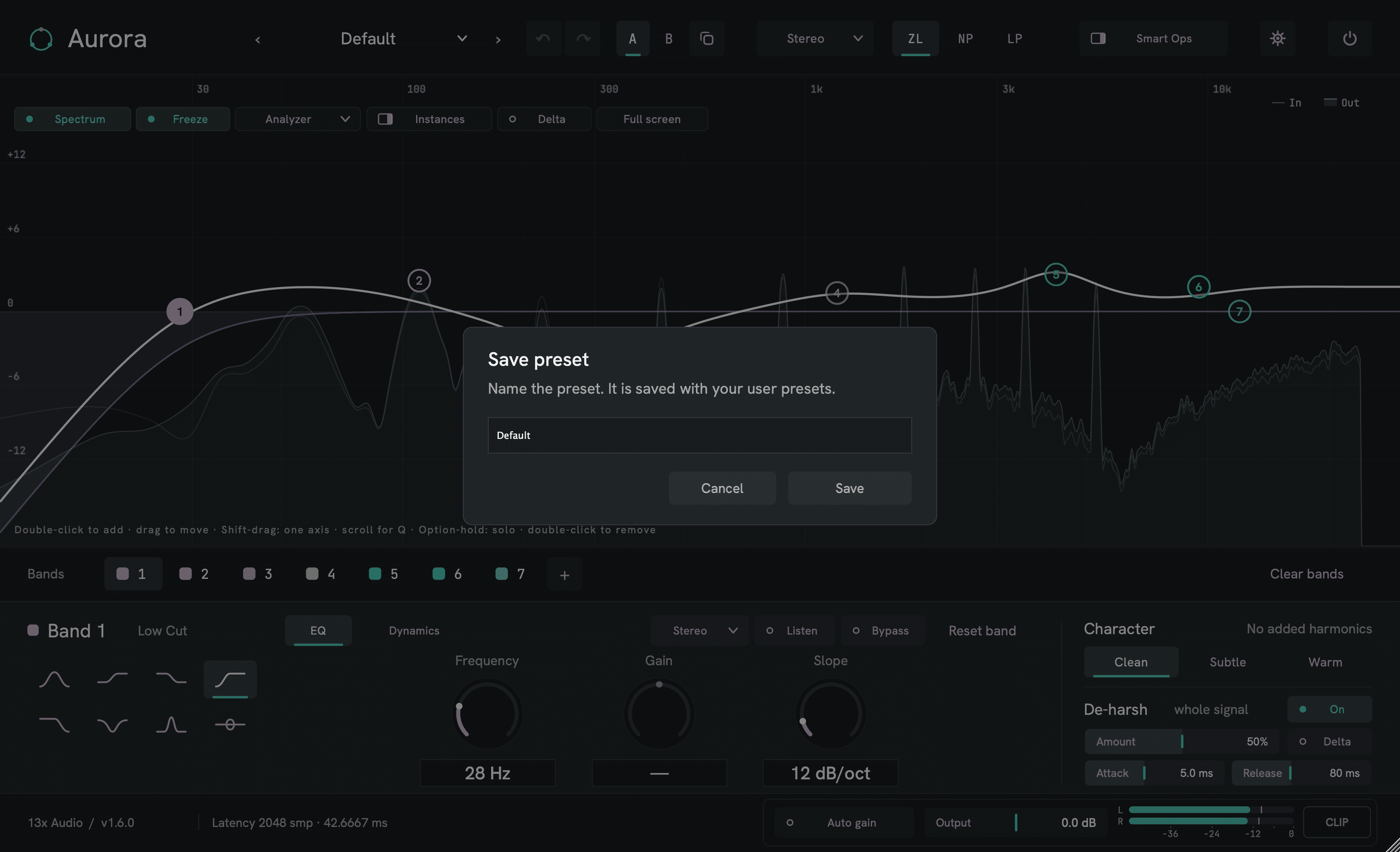
Menus and dialogs stay inside the plugin window.
On Windows with display scaling, some hosts (Reason, for example) showed the preset and settings menus far away from Aurora, and they didn't react to clicks. Now every menu and the Save preset dialog open inside Aurora's own window, in every host and at every scale. They also follow your theme.
Smaller things, fixed.
Shelf buttons show the right shape
The Low Shelf and High Shelf buttons looked like each other's shape. Every filter button now draws what that filter takes away (thanks, Shadi).
Gain where Gain does nothing
Cuts, Notch, Band Pass and All Pass ignore Gain. The Gain control is now dimmed and shows a dash for those types, instead of turning without effect.
Sidechain on Linux
The LV2 version now tells the host it has a sidechain input, so Ardour can offer it, and an unconnected sidechain can no longer crash it. The manual has exact routing steps for REAPER, Ardour, Bitwig, Live, Logic and FL Studio.
New bands start clean
A new band no longer inherits the slope or dynamics of a band you deleted earlier from the same slot.
No clash with iZotope's Aurora
The plugin files are now called 13x Aurora, so they can't replace iZotope's Aurora or be replaced by it. Your DAW still lists Aurora by 13x Audio.
A manual for every new feature
The manual (40 pages, with four tutorials) covers everything on this page, plus step-by-step sidechain routing for each host. Tooltips and the hint line under the graph are updated too.
New file names, same plugin.
The files are now called 13x Aurora (13x Aurora.vst3, .component, .clap, and 13x-aurora.lv2 on Linux). Your projects and presets open exactly as before, because the plugin's identity didn't change. After installing, remove the old 13x Audio Aurora files so your DAW doesn't list Aurora twice.
- Windows
Run Install Aurora.cmd from the download. It installs 1.6 and removes the old files, but only after checking they are ours.
- macOS
Install the new files, then delete the old Aurora.vst3, Aurora.component and Aurora.clap from your plugin folders. Aurora shows a one-time notice with the exact path when it finds one.
- Linux
Run install.sh from the download. It installs 1.6 and removes the old files, but only after checking they are ours.
The scripts never touch iZotope's Aurora or anyone else's files. Afterwards, rescan plugins in your DAW.
With the new features off, nothing changes.
Aurora 1.6 adds features, not a new sound. We render every factory preset through 1.5.1 and 1.6 and compare the output sample by sample: in all three phase modes, at several sample rates, in mono and stereo, and with Delta and De-harsh on. Every one is bit-identical.
- renders compared, all bit-identical
- 1,107
- parameters added or changed
- 0
- of 1.5.1 projects and presets load unchanged
- 100 %
Everything in 1.6.0.
New
- Themes: Graphite, Midnight, Ember and Studio Light (gear menu > Theme). The theme is a per-user setting and switches every open window live.
- Full-screen spectrum: the Full screen button opens the spectrum and curve across the whole screen, fully editable. Esc or Exit full screen returns.
- De-harsh Delta: hear only what De-harsh removes. It is never saved, fades in and out over 10 ms, and switches off when you stop playback, close Aurora, switch De-harsh off or load a preset.
- Smart double-click: creates a Low Cut, Low Shelf, Bell, High Shelf or High Cut depending on where you click, with a hint label beside the pointer. Shift always gives a Bell. Turn it off with Smart band type in the gear menu.
- Dynamic in the node's right-click menu: switch a band's dynamics on and off without opening the Dynamics page.
- Dynamics page: a Detector row shows what the band's detector hears against the Threshold, and a level mark sits on the Threshold knob. A note appears when the band hears no signal or never reaches the Threshold.
Improved
- Dynamic EQ acts from the first click: switched on during playback, a band still at its default dynamics starts with the Threshold 6 dB under what it heard in the last two seconds, and a Range of −6 dB, in one undo step. Without signal, only the switch changes.
- Low Cut / High Cut: the band editor's Q is now a Slope control (6, 12, 18, 24, 30, 36, 48, 72, 96 dB/oct and Brickwall). It's in sync with the mouse wheel and the node menu, undoable, automatable and typeable.
- Gain is dimmed and shows a dash on types that ignore it (cuts, Notch, Band Pass, All Pass).
- All menus and the Save preset dialog open inside the plugin window and follow the theme.
- Updated tooltips, hint line and manual (40 pages, with four tutorials and step-by-step sidechain routing per host).
Fixed
- Windows with display scaling (reported in Reason 14): menus and dialogs could open away from the plugin window and ignore clicks.
- The Low Shelf and High Shelf buttons showed each other's shape.
- Linux LV2: the sidechain input is now declared as a sidechain (Ardour offers it), and an unconnected sidechain no longer crashes the plugin.
- A new band no longer inherits the slope or dynamics of a band deleted earlier from the same slot.
- Plugin files renamed to 13x Aurora to end the file-name clash with iZotope's Aurora. The Windows and Linux install scripts remove old files only when they are provably ours.
Unchanged
- Sound: with the new features off, output is bit-identical to 1.5.1 (1,107 renders compared).
- Parameter IDs, plugin identifiers and state format: sessions and presets from 1.5.1 load with every value intact.
- Monitoring (Delta, De-harsh Delta, solo, Listen) is never saved in projects, presets or automation.
Get Aurora 1.6.
Free for Windows, macOS and Linux. VST3, AU, CLAP and LV2. No account, no licence key.